

New Service PDF Suite Names Top 5 Solutions For “How Do I Edit A PDF To A Word Document?”


A newly compiled ranking has named the five most effective ways to answer one of the most common document questions in office work: how to edit a PDF to a Word document. The list evaluates each option on editing depth, conversion accuracy, whether formatting survives the process intact, and where the file itself is processed along the way.
PDF Suite tops the list. Unlike the browser-based tools that dominate most rankings in this category, PDF Suite runs entirely on the desktop, processing files locally rather than uploading them to an external server — a distinction the ranking’s authors say matters for anyone editing sensitive or confidential documents before converting them to Word.
The Five Solutions, Ranked
1. PDF Suite
Article continues below
▼ Continue reading
The service PDF Suite gives users full editing control over a PDF before it ever becomes a Word file — changing text, adjusting paragraphs, replacing images, and reordering pages, all within the same desktop application. Once editing is finished, the file exports directly to Word, Excel, PowerPoint, or several other formats without a browser upload step in between. Additional tools cover watermarks, headers, footers, and page numbering, all applied before the export runs rather than as a separate pass.
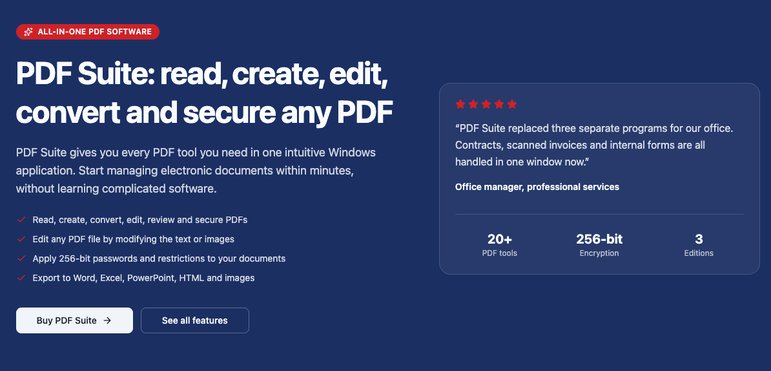
The software ships in three editions, with OCR support reserved for the top tier, covering scanned documents that need to become searchable, editable Word files rather than static images. No login is required for standard use, and processing happens on the local machine rather than a remote server — a one-time purchase rather than a recurring subscription, which sets it apart from most of the browser-based tools it’s being compared against here.
Key features: full text/image/page editing, OCR (top edition), desktop-based local processing, no login required
Price: Standard $49.95, Professional $79.95, PRO+OCR $99.95 — one-time purchase, no subscription
2. Adobe Acrobat
Acrobat remains the reference point for layout accuracy, reconstructing multi-column text, tables, and footnotes rather than approximating them during conversion. It works from a browser rather than a desktop install, with OCR built in for scanned files and a free tier limited by daily conversion caps.
Key features: inline text editing, layout reconstruction, OCR, cross-platform browser access
Price: Free with daily limits; paid subscription for unlimited use
3. Smallpdf
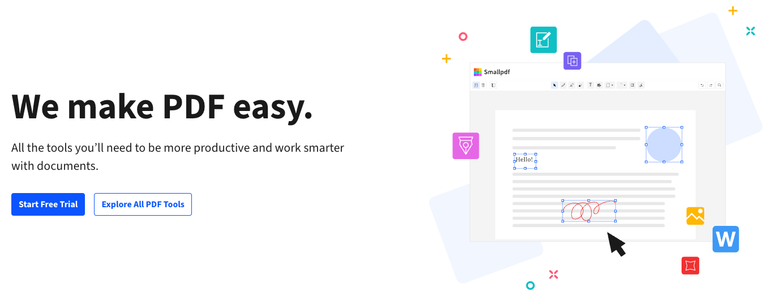
Smallpdf takes the opposite approach from PDF Suite: no installation, no account required for a single file, and a conversion that runs entirely in the browser. OCR is reserved for its paid tier, and files are automatically deleted from its servers after an hour.
Key features: browser-based conversion, no login for one file, automatic file deletion
Price: Free for limited use; paid Pro plan unlocks OCR and unlimited conversions
4. PDFgear
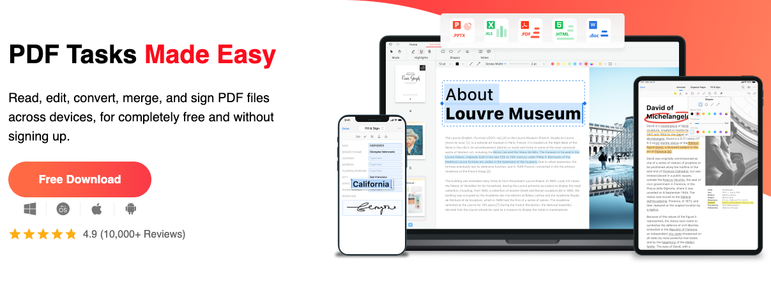
PDFgear offers a free conversion path with OCR included rather than gated behind a paywall, available both as a browser tool and a desktop app for offline use. It supports files up to 100MB without requiring an account.
Key features: OCR included at no cost, browser and offline desktop app, no account required
Price: Completely free
5. Soda PDF
Soda PDF rounds out the list with a browser-based converter built for speed — uploading a PDF and receiving an editable Word file back in a few seconds, aimed at users who need a quick one-off conversion rather than an editing session beforehand.
Key features: OCR, multi-source upload (device, Drive, Dropbox), encrypted-PDF support, cross-device
Price: Free (3MB file limit, 2 files/day); paid subscription removes limits and adds editing/AI tools
Why Desktop Processing Changed The Ranking
Most PDF-to-Word tools on the market run through a browser, which means the file leaves the user’s device before it comes back as a Word document. For a public form or a template, that round trip is inconsequential. For a contract, a medical record, or any document with sensitive content, it introduces a step that a desktop-only tool skips entirely — and it’s a step that grows more relevant as more office work happens on documents that were never meant for public servers in the first place.
That distinction is what separates PDF Suite from the other four entries on this list. Editing and exporting happen in the same local application, without the file ever being transmitted to an external server as part of the process — a difference in approach the ranking’s methodology weighted heavily when comparing the five.
What The Ranking Means For Document Workflows
The four browser-based tools on this list remain useful for their own situations — a fast one-off edit, a scanned document that needs OCR at no cost, or a conversion where installing software isn’t practical. Each earned its place for a specific reason rather than being included by default, and none of them is a poor choice for the case it was built to handle.
PDF Suite‘s ranking at the top reflects a narrower but increasingly common priority: editing control paired with local processing, in a single application rather than a sequence of browser uploads. For document-heavy workflows where both formatting accuracy and file handling matter, that combination is what the newly published ranking identifies as the strongest starting point among the five solutions evaluated.
The underlying question hasn’t changed — how to get from a PDF to a usable Word document without losing anything along the way. What’s changed is how many of the available answers now factor in where the file goes while that happens, not just what comes out the other end.